 Vera Clarissa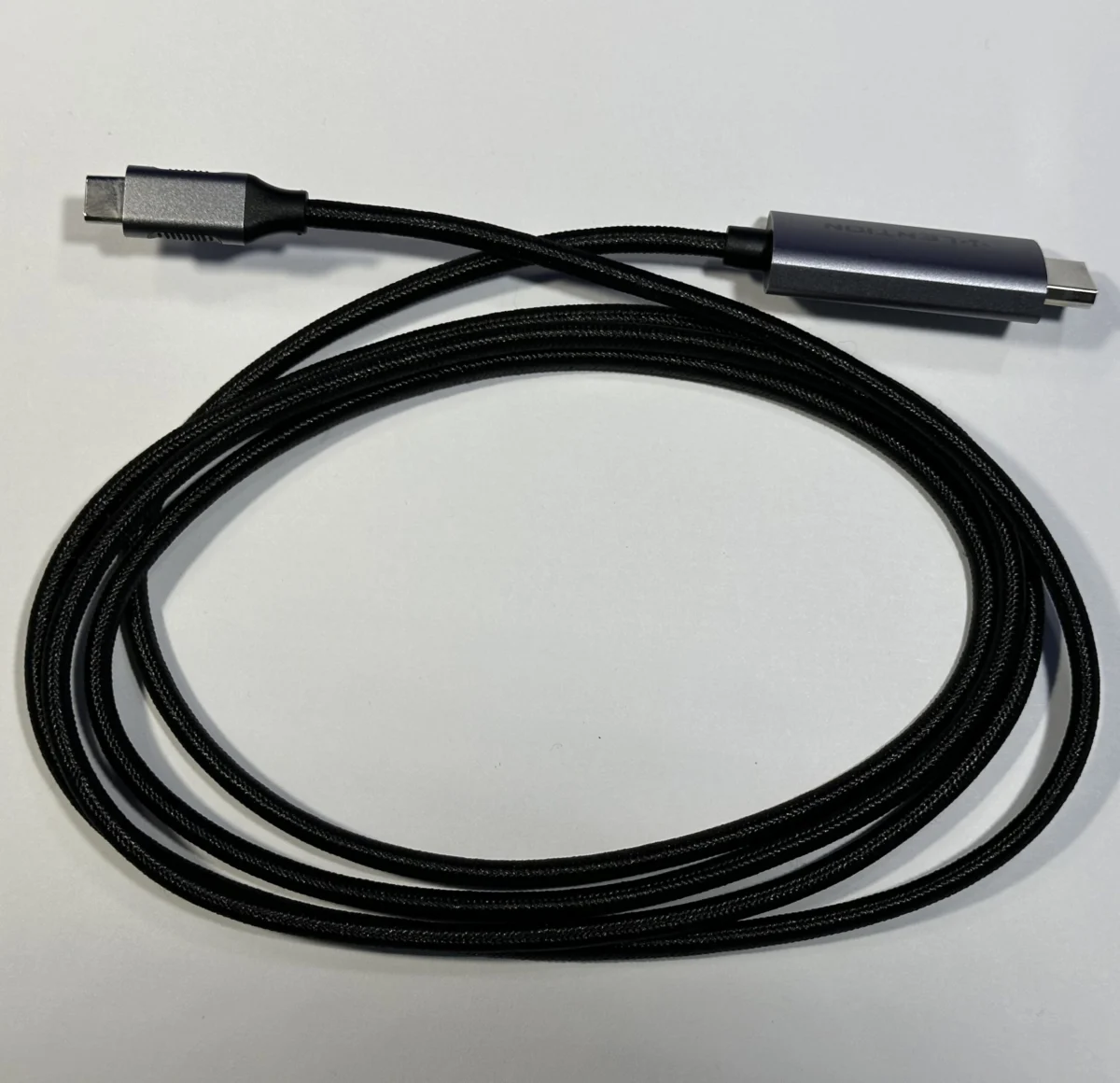
The evolving landscape of Apple’s Mac lineup, from the versatile MacBook Air to the robust MacBook Pro and even the iPad, necessitates a pragmatic approach to connectivity. As hardware iterations introduce new port configurations, particularly the widespread adoption of USB-C (Thunderbolt), users often find themselves navigating a complex ecosystem of cables and accessories. This article revisits the essential toolkit for Mac users, updating recommendations from a 2025 perspective to ensure seamless integration and expanded functionality across a range of devices.
Adapting to the USB-C Era: Bridging the Connectivity Gap
The most ubiquitous and arguably the most crucial accessory for any modern Mac user is a reliable USB-C to USB-A adapter. This small, often inexpensive device serves as a critical bridge, allowing users to leverage the vast existing ecosystem of USB-A peripherals – from flash drives and external hard drives to legacy keyboards and mice – with the latest MacBooks, iPads, and other USB-C-equipped devices. The prevalence of USB-A ports in public spaces, older office equipment, and many consumer electronics means that this adapter is not merely a convenience but a necessity for uninterrupted productivity.
Historically, the transition to USB-C presented a challenge for users with substantial investments in USB-A accessories. While Apple has progressively integrated more USB-C ports, the need for backward compatibility remains significant. The cost of these adapters has plummeted over the years, with many functional options available for under $5. For instance, a common scenario involves inheriting a USB-A flash drive from a colleague or a legacy external hard drive from a previous setup. Without a USB-C to USB-A adapter, these devices would be rendered inaccessible, disrupting workflows. The economic argument is compelling: the low cost of these adapters far outweighs the inconvenience and potential data access issues they prevent. Reports from technology forums and consumer reviews consistently highlight the indispensable nature of this adapter, with many users carrying multiple units for redundancy.
Protecting Your Investment: Cases and Enclosures
The physical protection of Mac devices, whether a brand-new M4 MacBook Air or a carefully maintained older model, is paramount. Laptop cases and sleeves serve as the first line of defense against everyday wear and tear, accidental drops, and environmental hazards. The aesthetic preferences of users vary, with many opting for clear cases to showcase the device’s design. However, the durability of clear cases has been a point of contention. Over time, some materials can become brittle, leading to cracks, even on premium-priced options. Factors such as UV exposure and repeated stress can accelerate this degradation.
When considering protective cases, a balance between form and function is key. For instance, the Incase Edge Hardshell, once a popular choice for MacBooks, offered a snug fit and good material quality, reflecting a premium price point of around $50. However, user experiences have shown that even higher-priced cases are not immune to cracking. In contrast, more budget-friendly options, often found on platforms like Amazon for approximately $10, can provide adequate protection against direct impacts and surface scratches, such as those incurred during transport or when sliding the device into a backpack. The trade-off may be in the precise fit or the perceived long-term durability, but for many, the cost-effectiveness makes them a viable solution. The ability to easily remove and clean these cases also adds to their practicality.
Expanding Connectivity: Hubs and Docking Solutions
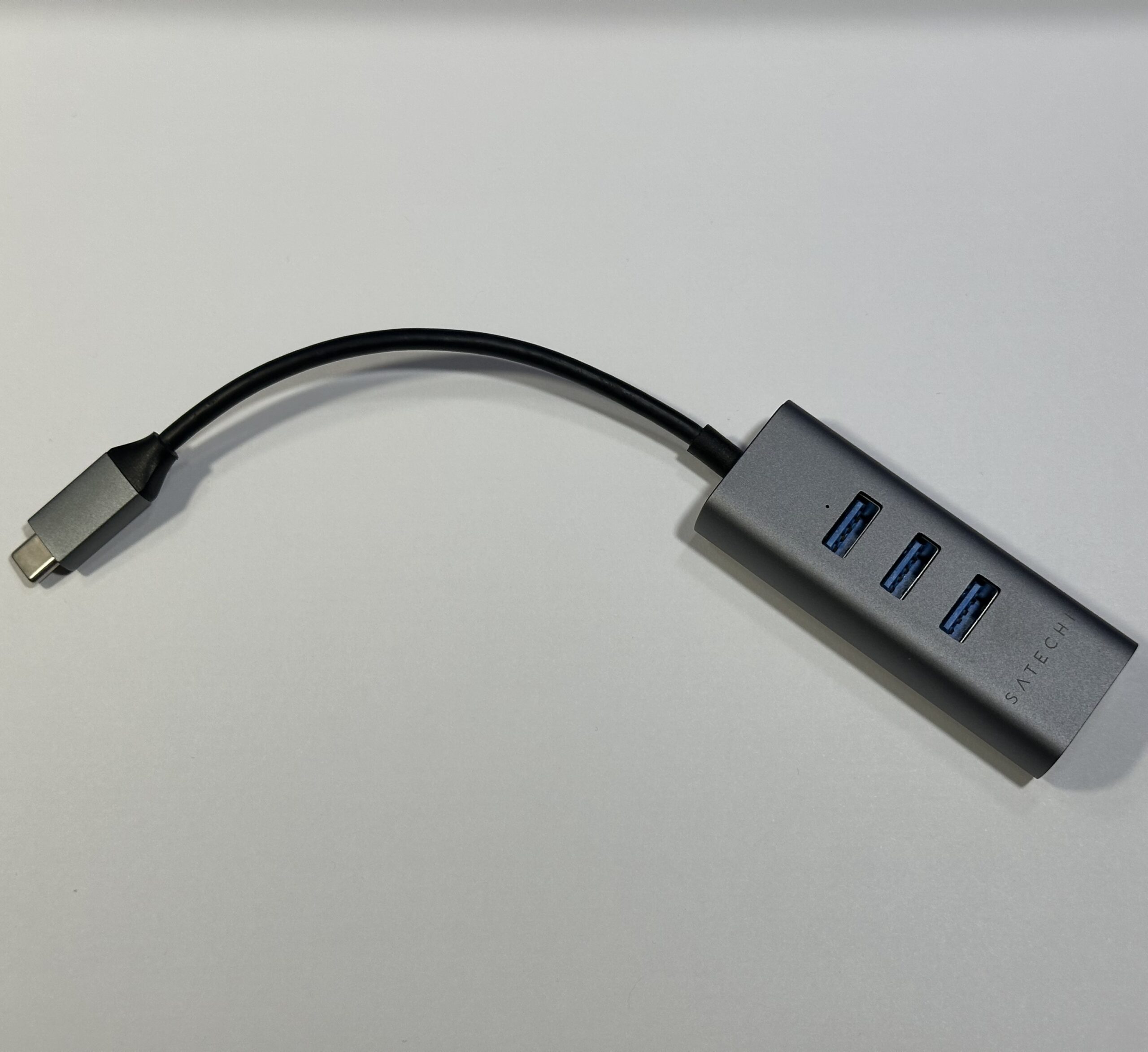
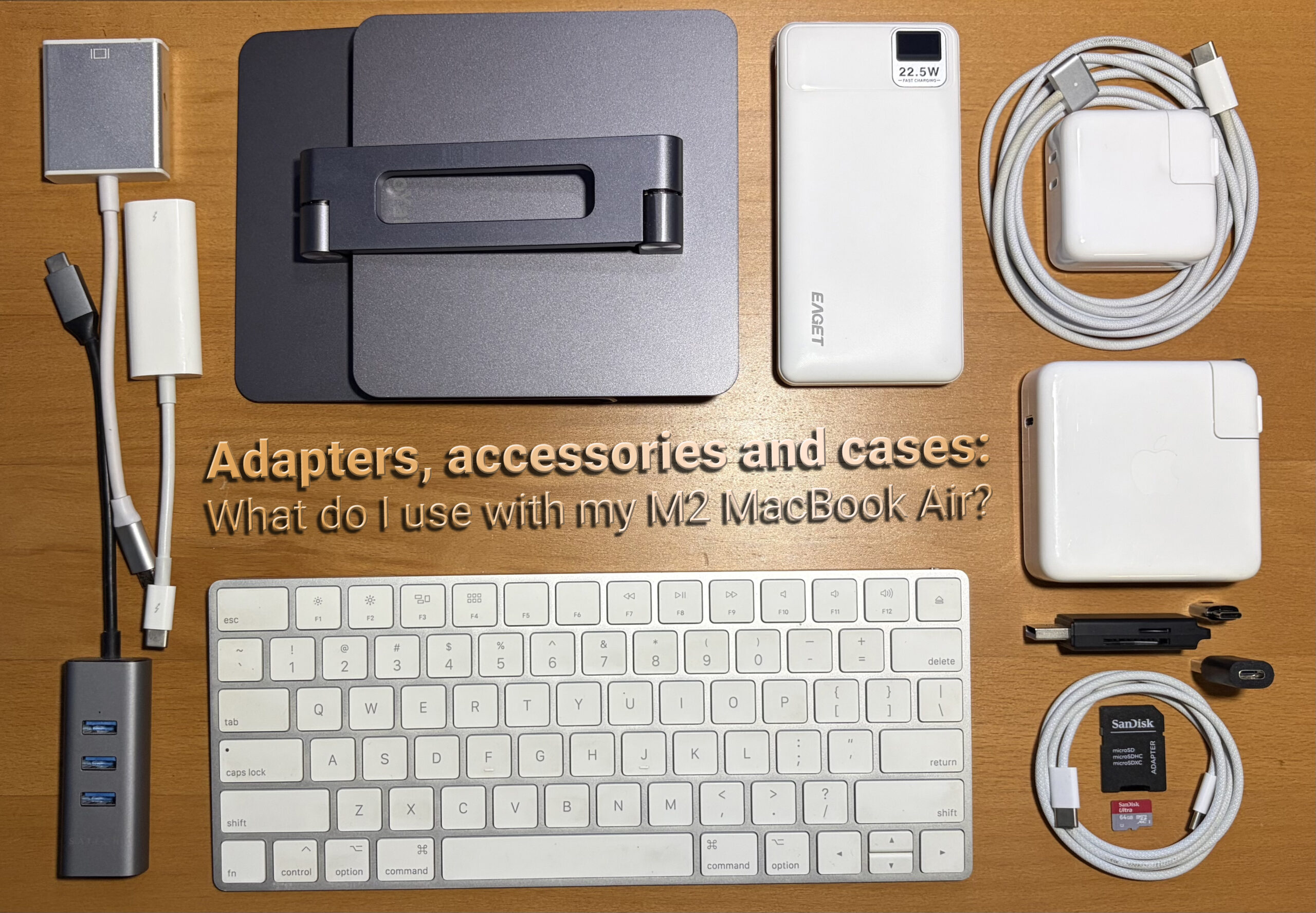
The minimalist design of modern MacBooks, characterized by a limited number of USB-C ports, has fueled the market for multi-port hubs and docking stations. These devices are essential for users who require simultaneous connection to multiple peripherals, external displays, and wired networks. A notable example is the Satechi USB-C to 3x USB-A 3.0 + Gigabit Ethernet adapter. This type of hub addresses several common connectivity needs. The inclusion of multiple USB-A ports ensures compatibility with a wide array of accessories, while the Gigabit Ethernet port provides a stable and high-speed wired internet connection, often superior to Wi-Fi in demanding environments.
Such hubs are particularly valuable for users who transition their devices between different workspaces, such as an office and a home setup. For instance, a user who utilizes a MacBook Air for mobile work and a Mac mini as a desktop workstation can benefit from a unified set of peripherals connected through a hub. The aesthetic integration with Apple’s design language, often featuring aluminum enclosures that match Space Gray or Silver finishes, is another advantage. Priced competitively, typically around $30-$40, these hubs offer a significant increase in port availability without requiring a substantial financial outlay. The build quality, often featuring metal casings, contributes to their longevity, although minor cosmetic wear, such as a sliding metal casing, might occur over extended use, often rectifiable with simple adhesive solutions.
Leveraging Legacy Displays: Adapting to the New Standard
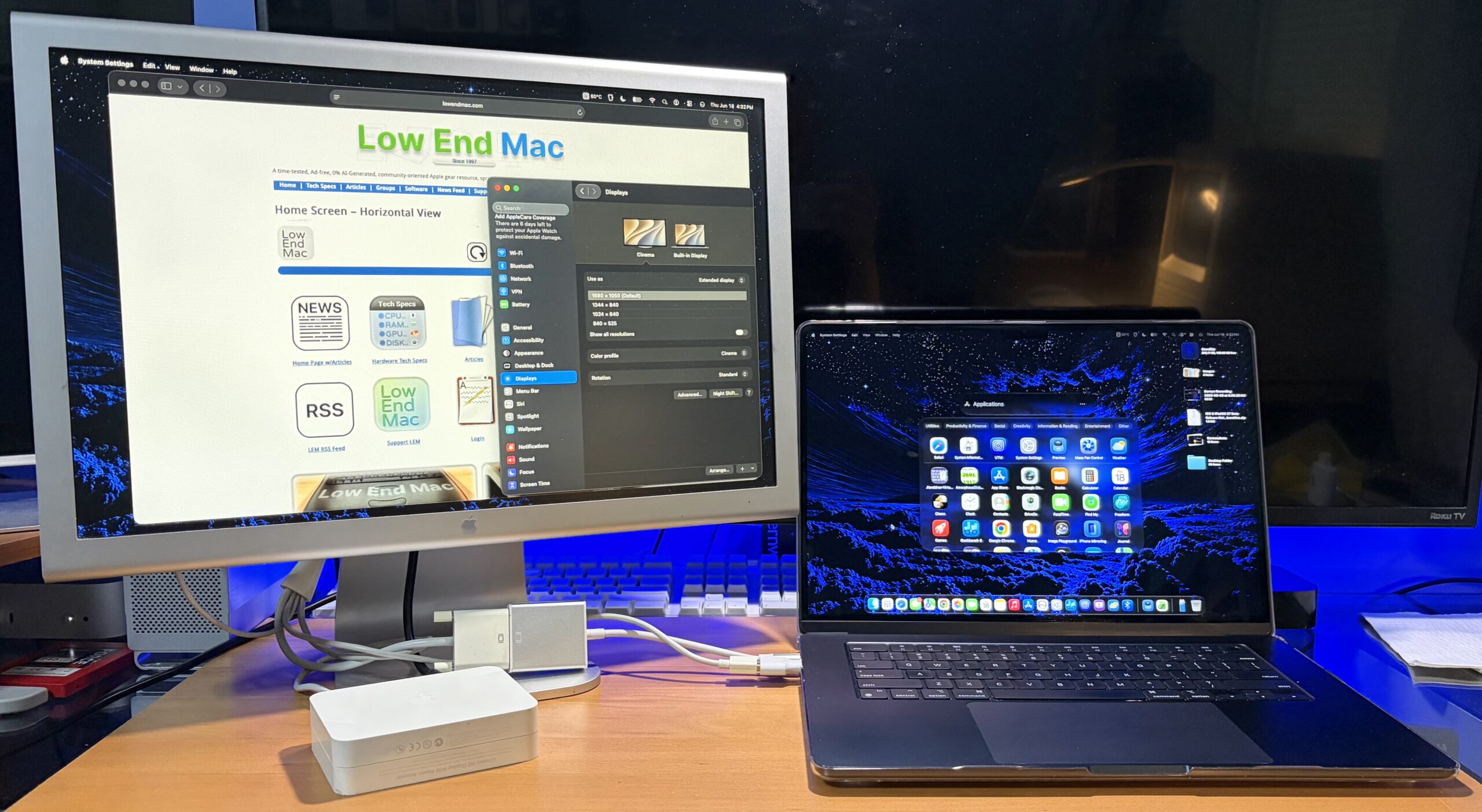
For users who possess older, yet perfectly functional, external displays, such as the Apple Aluminum Cinema Display, adapting them to modern Apple Silicon Macs is a testament to the interoperability of technology. The transition from proprietary display connectors to standards like DisplayPort and HDMI, and subsequently to USB-C, has required the development of specialized adapters. A simple USB-C to Single-Link DVI adapter, often available for around $26, can effectively connect older displays like the 20-Inch Aluminum Cinema Display to current Mac models, including those with M1 and M2 chips.
The demand for such adapters highlights the economic and environmental benefits of extending the lifespan of existing hardware. While single-link DVI adapters are generally affordable, dual-link DVI adapters, required for higher resolutions and refresh rates on certain displays, can be more expensive. Users have reported success using combinations of adapters, such as a Mini DisplayPort to Dual-Link DVI adapter in conjunction with a USB-C to Mini DisplayPort adapter, to connect more demanding legacy displays. The availability of these adapters allows users to avoid the significant cost of purchasing new, modern displays, reinforcing the value of a well-equipped connectivity toolkit.
Optimizing Power and Charging: Fast Charging and Portable Solutions
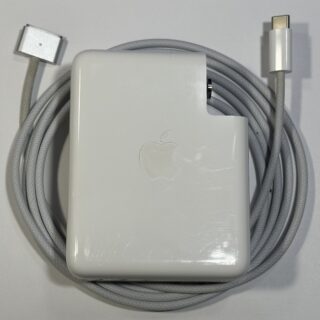
Fast charging capabilities are a significant feature of modern MacBooks, particularly the M2 MacBook Air, which can leverage higher-wattage charging bricks typically associated with MacBook Pro models. While the base M2 Air ships with a lower-wattage adapter, it fully supports fast charging when connected to a more powerful source. This presents an opportunity for users to repurpose older Apple charging bricks. When trading in older MacBooks at Apple, customers are often permitted to retain their accessories, including chargers. This practice allows users to build a collection of powerful chargers that can be strategically placed at home or in a travel bag.
For users who need to acquire new charging solutions, reputable brands like Anker offer high-wattage USB-C chargers that are both compact and powerful. A 100W GaN charger, for example, can provide ample power for most MacBooks and other USB-C devices, often at a competitive price point of around $30. The author’s personal setup utilizes a 140W Apple USB-C brick at home and a slightly smaller 87W brick for travel, recognizing that the MacBook Air’s charging requirements are met by the latter, even for fast charging.
External Storage and Media Access: The Importance of Card Readers and Drives
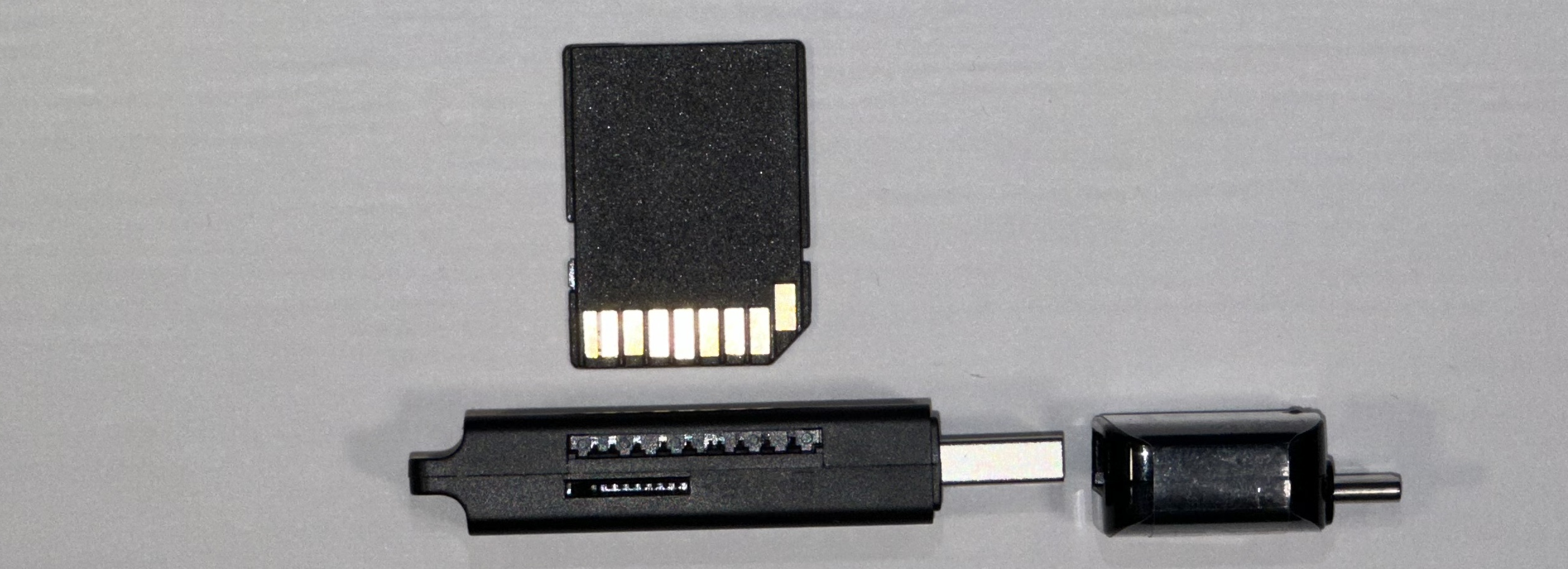
The omission of SD card slots in many modern laptops has made external SD card readers a common accessory. For users who do not require constant access to SD cards, but need the functionality occasionally, these readers offer a cost-effective solution. The market for USB-C SD card readers is abundant, with many affordable options available. The flexibility of these readers is further enhanced by the ubiquitous USB-C to USB-A adapter, allowing compatibility with older devices or systems that may only have USB-A ports available.
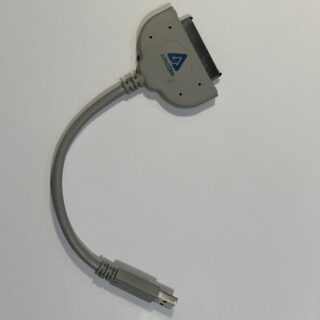
The repurposing of old laptop hard drives represents another significant cost-saving opportunity. With the widespread adoption of Solid State Drives (SSDs), traditional Hard Disk Drives (HDDs) from older laptops are often discarded. However, these drives can be given a new lease on life with inexpensive USB-C to SATA adapters. These adapters, similar in cost and availability to USB-A versions, allow users to create large-capacity external storage solutions for a fraction of the price of new drives. For example, a 500GB HDD can be acquired for as little as $10 on platforms like eBay, offering substantial storage for backups or media libraries, albeit with slower transfer speeds compared to SSDs.
Enhanced Display Connectivity: Understanding Adapter Specifications
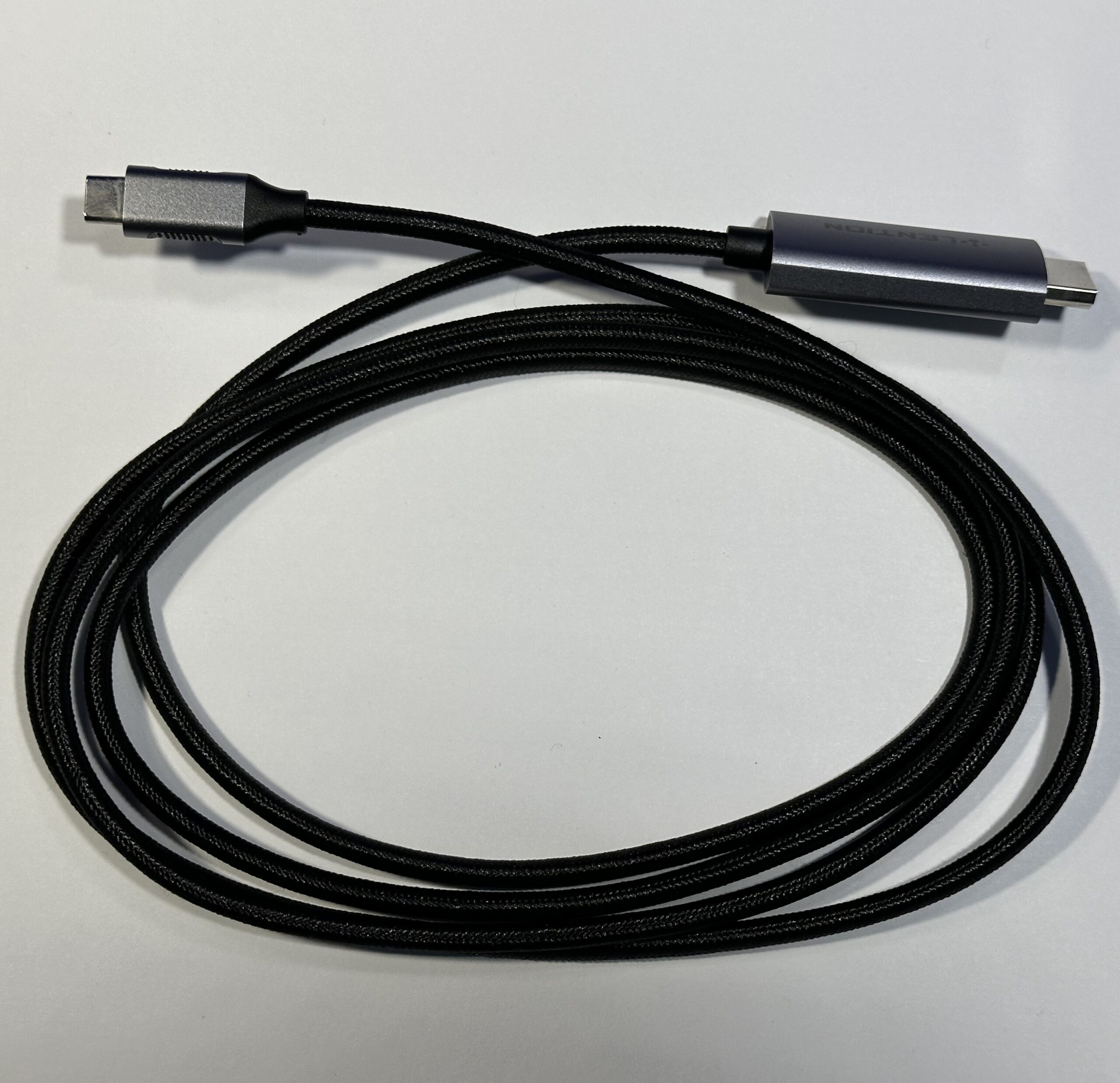
Connecting to external displays requires careful attention to adapter specifications, as not all adapters are created equal. The evolution of display standards, such as HDMI 1.4 versus HDMI 2.0 and higher, directly impacts supported resolutions and refresh rates. A common pitfall is purchasing a USB-C to HDMI cable that adheres to an older standard, such as HDMI 1.4, which limits 4K output to 30 Hz. While this might suffice for basic screen expansion, it can lead to noticeable stuttering and, for some users, a form of motion sickness due to the reduced refresh rate.
Upgrading to an adapter that supports HDMI 2.0 or higher ensures a smoother visual experience, particularly for tasks involving dynamic content or prolonged viewing. The author’s experience with a 4K30Hz HDMI cable, which was later repurposed for a secondary display on a Mac mini, underscores the importance of verifying specifications. The ability to achieve a 60 Hz refresh rate at 4K resolution is critical for comfortable and productive use of external monitors, preventing visual discomfort and improving overall user experience.
Ergonomics and Productivity: Stands, Keyboards, and Organization
Beyond connectivity and protection, accessories that enhance the ergonomics and overall user experience are vital. For instance, an iPad stand can serve a dual purpose, supporting an iPad for use with features like SideCar, which allows the iPad to function as a secondary display for a Mac. Such stands can also be utilized to prop up a MacBook vertically, facilitating a "clamshell mode" setup where the laptop is closed and used with external peripherals. This configuration is particularly useful for desk-bound users seeking a more compact workspace. The key is to ensure the stand provides stable support without stressing the device’s chassis.
For users experiencing keyboard issues or preferring an external typing experience, an ultra-slim OEM wireless keyboard can be a valuable addition. Older Apple wireless keyboards, often available secondhand at significantly reduced prices, offer a familiar typing feel and compact design, fitting easily into laptop bags.
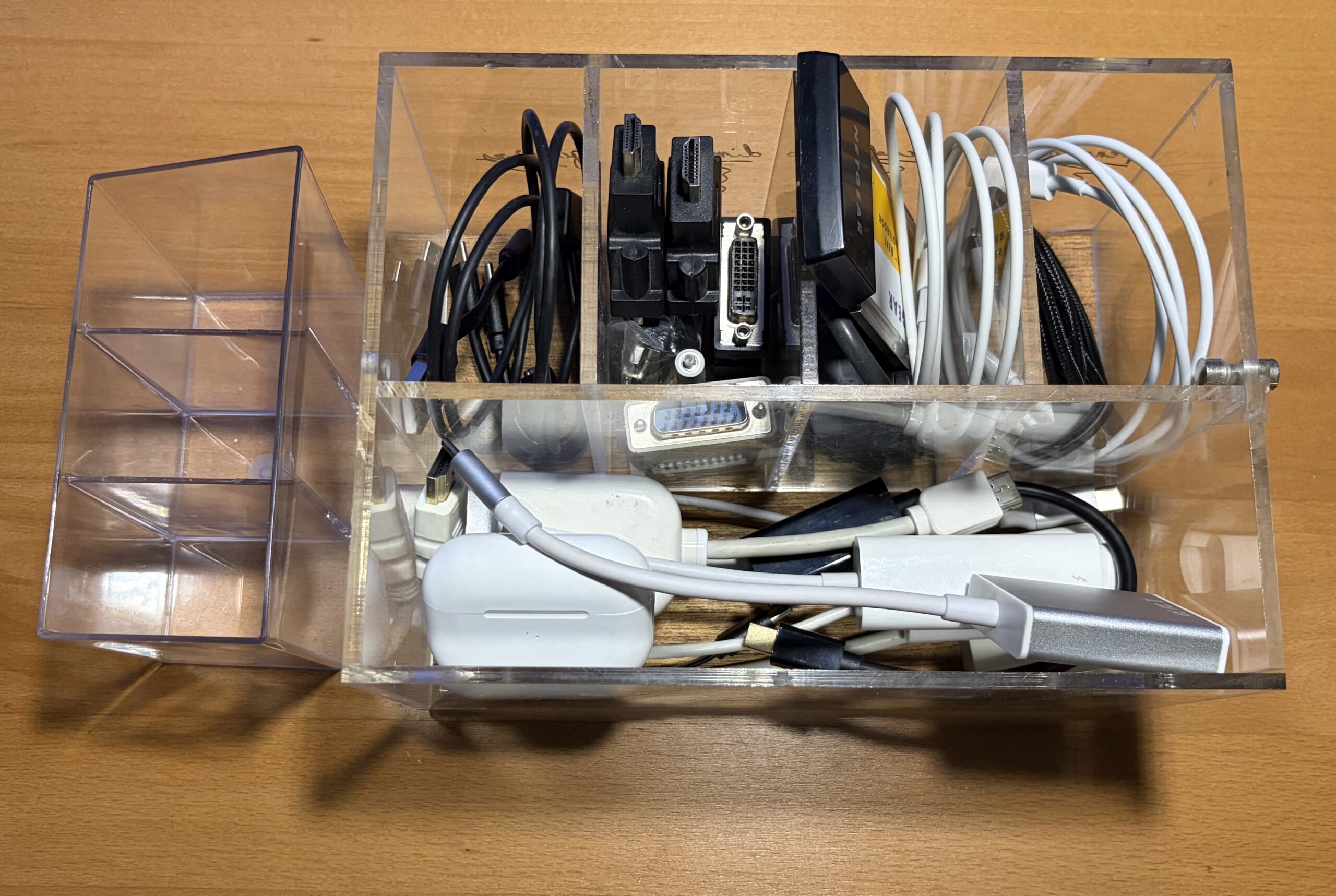
Effective organization of these numerous adapters and accessories is also crucial for maintaining a tidy workspace and preventing loss. Low-cost plastic organizers, readily available from dollar stores, off-price department stores, or even art supply shops, can be used to compartmentalize and categorize accessories, ensuring they are easily accessible and not jumbled together.
Portability and Power: Power Banks and Travel Essentials
For users who frequently work away from power outlets, a portable power bank is an indispensable accessory. To effectively charge a MacBook or iPad, a power bank with a sufficient wattage output, typically 35W or higher, is recommended. While these higher-capacity power banks can represent a moderate investment, often costing $50 or more, their utility in critical situations cannot be overstated. They can provide a lifeline when outlets are scarce or inaccessible.
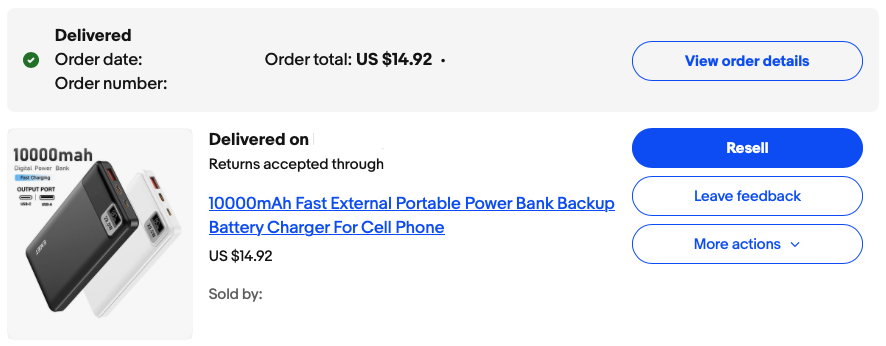
Even a more modest power bank, such as a 10,000 mAh unit with a claimed 22.5W output, can offer a trickle charge to a MacBook Air while it’s in sleep mode, extending battery life during transit. While not a substitute for direct charging while the device is in active use, this capability can be a significant advantage for users who need to conserve power. The author’s experience with a budget-friendly eBay power bank illustrates that even lower-cost options can provide some level of charging support for mobile devices.
Conclusion: A Pragmatic Approach to Mac Accessories
The modern Mac ecosystem, while powerful and elegant, often requires a thoughtful selection of accessories to unlock its full potential and ensure seamless integration with existing technology. The key takeaway is that essential functionality does not necessitate exorbitant costs. By strategically acquiring adapters, hubs, and protective gear, users can build a comprehensive toolkit that enhances productivity, protects their investment, and adapts to a wide range of connectivity needs. The most versatile and portable setups often involve combining a few well-chosen, multi-functional accessories that can fit within a compact space, mirroring the portability of the laptops they serve. The abundance of affordable and effective solutions available through online marketplaces and retail channels empowers users to customize their computing experience without breaking the bank. This pragmatic approach ensures that users can maintain a connected and efficient workflow, regardless of their Mac model or the environment in which they operate.